


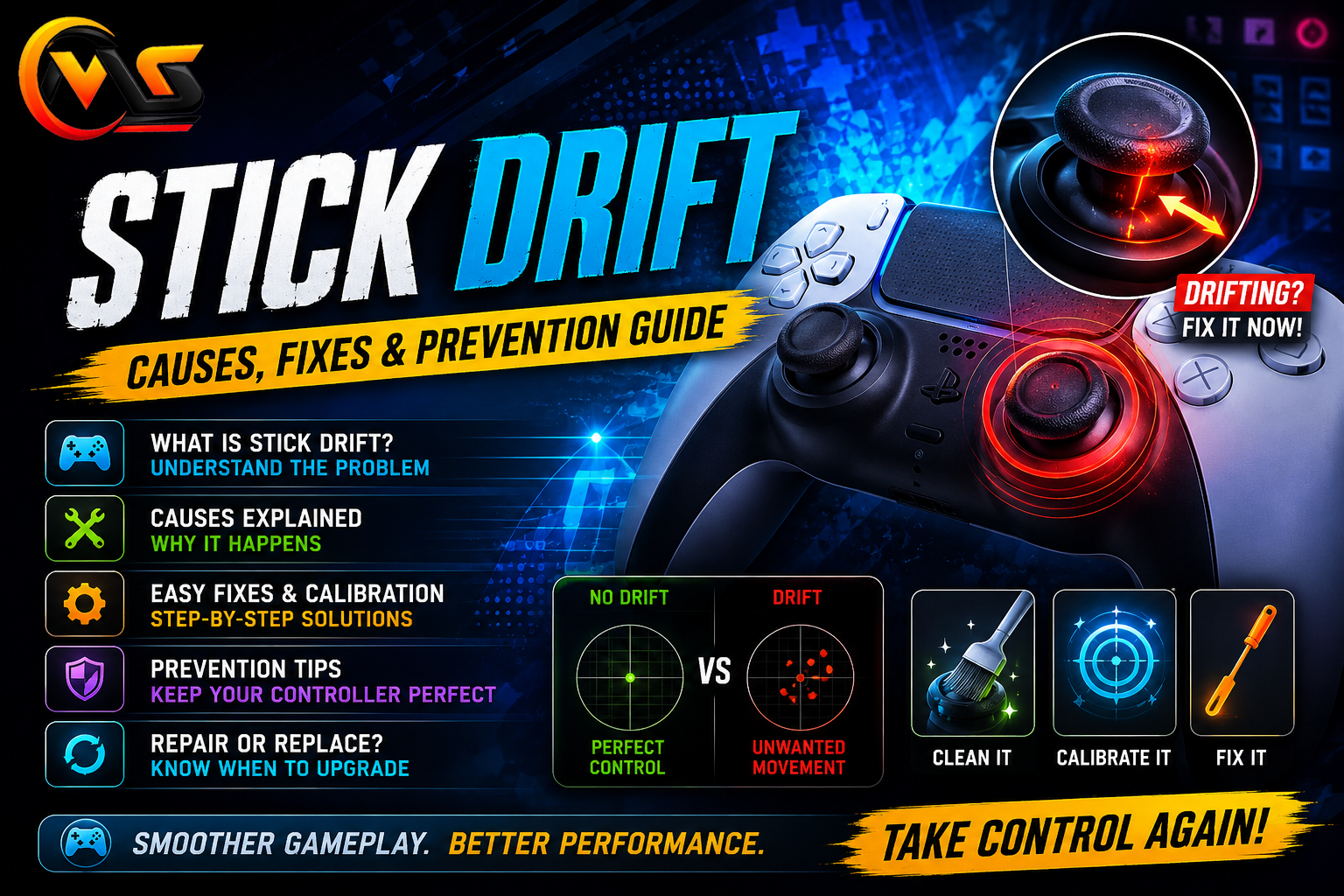
A controller can feel perfectly fine one day and strangely unreliable the next. Your character may slowly walk without touching the stick, a camera can turn by itself, or a menu cursor may move across the screen. These are classic signs of stick drift, one of the most annoying problems gamers encounter with modern controllers. The good news is that drift does not always mean your controller is finished. Depending on the cause, cleaning, calibration, software settings, or repair may improve the situation.
What this guide covers:
- What stick drift actually means
- The common reasons analog sticks start drifting
- How to recognize and test the problem
- Simple fixes worth trying at home
- When calibration can help
- When repair or replacement becomes the better option
- Ways to reduce unnecessary controller wear
What Is Stick Drift?
Stick drift happens when an analog stick sends movement input even though you are not intentionally moving it.
Imagine playing a shooting game while your character slowly walks to the left. You take your thumb completely off the stick, but the character keeps moving. In another game, the camera might gradually rotate on its own.
The problem usually comes from the controller incorrectly reporting the stick’s position. Even a small unwanted input can become very noticeable in games that require precise movement.
Not every strange movement is necessarily hardware drift, though. A game may have unusual sensitivity settings, another controller may be sending input, or a software problem may create similar symptoms.
Why Does Controller Drift Happen?
Analog sticks contain moving components that measure direction and movement. Every time you play, those parts move and experience physical wear.
Over time, several things can contribute to unwanted input. Regular use is one factor, while dust, debris, moisture, accidental drops, and general mechanical wear can also affect the stick mechanism.
The exact cause depends on the controller. A controller that gets heavy daily use may develop problems sooner than one that spends most of its time in a drawer.
It is also worth remembering that drift can appear differently from one game to another. A tiny unwanted input might be almost invisible in one title but extremely obvious in a game with a sensitive camera.
Common Signs of Stick Drift
The easiest way to spot drift is to leave the analog stick untouched and watch what happens.
Your character might slowly move in one direction even when your thumb is off the controller. A camera can rotate gradually, menus may scroll without input, or an aiming reticle might refuse to stay still.
Another clue is inconsistent movement. The controller may behave normally for several minutes and then suddenly start moving by itself.
If the issue appears only in one game, check that game’s controller settings before assuming the hardware has failed. Nintendo, for example, recommends checking game-specific settings and updates when control-stick problems occur only in a particular application.
How to Test for Stick Drift
You do not need to immediately open your controller to investigate the problem. Start with a simple test.
Connect the controller and open a reliable gamepad testing tool, then leave the stick untouched. Watch the displayed position for several seconds. If the input indicator moves noticeably without physical contact, the controller may be registering unwanted movement.
You can also test the controller inside a game. Find a quiet area where your character or camera normally stays still, release the stick, and observe it.
Try the test with both analog sticks. Drift does not always affect the left stick first, and the symptoms can vary depending on which stick is worn.
Stick Drift Fixes Worth Trying
Before buying another controller, try the least invasive solutions first. Start by checking the controller connection and restarting the console or device. Then make sure the controller and system software are updated.
Next, inspect the area around the analog stick. Dust or debris can interfere with movement, so gently cleaning the exterior with an appropriate soft, dry cloth may help. PlayStation’s support guidance specifically recommends removing dirt around an analog stick with a soft cloth when dealing with stick-input problems.
Calibration is another option on systems that provide it. Nintendo Switch, for example, includes a Calibrate Control Sticks option under Controllers and Sensors. Nintendo recommends fully tilting the affected stick and following the on-screen instructions.
Stick Drift: Problem vs. Possible Solution
| Symptom | Possible Cause | First Thing to Try |
|---|---|---|
| Character moves alone | Unwanted stick input | Test the stick with no thumb contact |
| Camera slowly turns | Right-stick drift | Check stick response and game settings |
| Drift appears in one game | Game configuration | Check sensitivity and control settings |
| Stick feels rough | Dirt or physical wear | Gently clean around the stick |
| Calibration does not help | Mechanical problem | Consider repair or replacement |
| Input suddenly becomes unreliable | Connection or hardware issue | Reconnect, update, and test again |
Can Calibration Really Fix Drift?
Calibration can help when the controller’s reported neutral position is slightly inaccurate and the system supports recalibration.
It is not a magic solution for worn mechanical parts, however. If the stick has significant physical wear, calibration may only reduce the symptoms temporarily or fail to make a meaningful difference.
Nintendo’s official guidance says calibration can resolve some control-stick problems, but it also advises service when the sticks cannot be calibrated or continue to respond incorrectly afterward.
Some advanced controllers also provide adjustable deadzones. A larger deadzone can ignore tiny stick movements near the center position, which may hide mild drift. The downside is that excessive deadzone settings can make small movements feel less responsive.
When Should You Repair or Replace the Controller?
If cleaning, updating, reconnecting, and calibration do not solve the problem, the issue may be mechanical.
At that point, you have two practical choices: professional repair or replacement.
Repair can make sense when the controller is expensive, relatively new, or otherwise in excellent condition. Replacement may be simpler when the controller is heavily worn or several buttons and components are also causing problems.
Avoid opening a controller unless you understand what you are doing. Internal components are small, and an unsuccessful repair can turn a manageable stick problem into a completely unusable controller.
For persistent PlayStation controller issues, Sony directs users toward its repair and troubleshooting resources.
How to Prevent Future Controller Drift
You cannot completely eliminate mechanical wear, but you can reduce unnecessary stress on your controller.
Keep the controller clean and store it somewhere dry. Avoid throwing it onto a desk or sofa after gaming sessions, and do not press or twist the analog sticks harder than necessary.
It is also smart to avoid eating directly over your controller. Small particles can find their way into gaps around moving components.
If your controller supports adjustable sensitivity or deadzone settings, use reasonable values instead of pushing everything to an extreme. A comfortable setup can reduce the temptation to make unnecessary physical movements with the sticks.
For Nintendo systems, keeping the console updated and using the built-in calibration tools when needed is part of the manufacturer’s recommended troubleshooting process.
Final Thoughts
Stick drift can turn a perfectly enjoyable gaming session into a frustrating experience, but it does not always mean you need a new controller immediately. Start by identifying whether the problem happens everywhere or only in one game. Then check the connection, software, physical cleanliness, and available calibration options. Mild problems may improve with these simple steps, while persistent drift can point toward mechanical wear. If calibration fails and unwanted movement continues, professional repair or replacement is usually the sensible next step. Taking better care of the controller can also reduce the chances of facing the same problem again.
Frequently Asked Questions
1. What exactly causes stick drift?
Stick drift usually occurs when an analog stick begins reporting movement while it is sitting near its neutral position. Physical wear inside the stick mechanism is a common reason, but dirt, damage, software settings, or calibration problems can also create similar symptoms.
2. Can cleaning fix controller drift?
Cleaning can help when dirt or debris interferes with the analog stick’s movement. It will not repair worn internal components, though. Use gentle cleaning methods rather than forcing liquid or aggressive tools into the controller. If the problem continues afterward, calibration or professional repair may be more appropriate.
3. Does calibration permanently fix stick drift?
Not necessarily. Calibration can correct certain input-position problems when the controller and system support it. However, calibration cannot restore worn mechanical parts. If drift returns quickly or the stick continues behaving incorrectly after calibration, the controller may require servicing or replacement.
4. Can stick drift get worse over time?
Yes, a hardware-related problem can become more noticeable as the controller receives additional use. Small unwanted movements may initially appear only occasionally, then become easier to notice during gameplay. If the issue keeps increasing, testing and addressing it early can save you from more frustrating gaming sessions.
5. Should I buy a new controller because of drift?
Not immediately. First check the connection, software, game settings, cleanliness, and calibration options. If those steps do not help, compare the controller’s age and condition with the cost of repair or replacement. A newer or premium controller may be worth repairing, while an older heavily used one may not be.
Also Read: Gamepad Viewer: Complete Guide for Gamers and Streamers
