


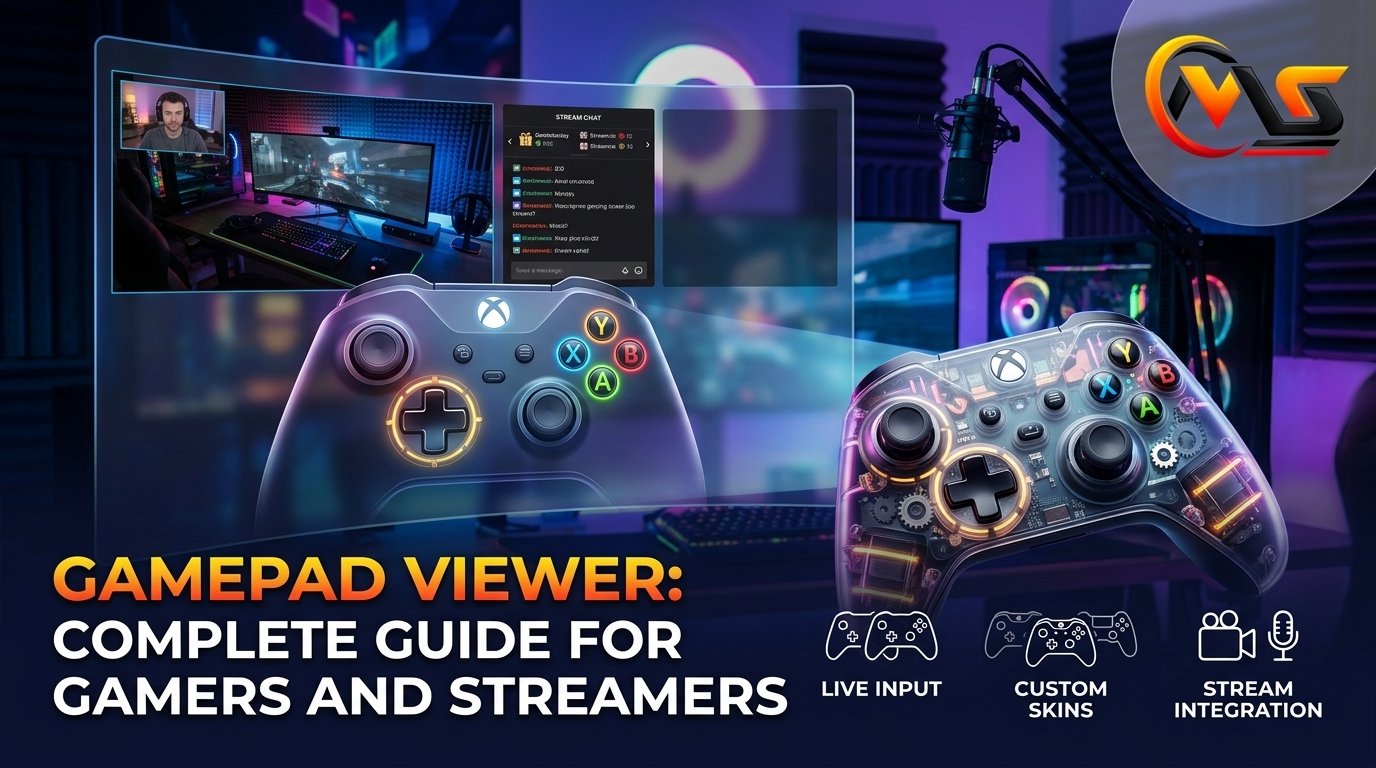
Gaming setups have become more creative than ever. A good microphone, webcam, and clean overlay can make a stream much more enjoyable, but some creators want viewers to see something else too: their actual controller inputs. That is where Gamepad Viewer comes in. It is a browser-based tool that displays button presses, stick movements, and other controller activity on screen in real time. It can be useful for streamers, gamers, speedrunners, and anyone who wants a quick way to check whether a controller is responding properly.
What this guide covers:
- What Gamepad Viewer is and how it works
- How to connect and test a game controller
- How to use the viewer with OBS
- Controller skins, scaling, delay, and customization
- Common connection and browser problems
- Whether Gamepad Viewer is worth using for beginners
What Is Gamepad Viewer?
Gamepad Viewer is an online controller visualization tool. Instead of showing your gamepad only in your hands, it creates an on-screen version that reacts when you press buttons or move the analog sticks.
This simple idea has several practical uses. A streamer can place the controller display over gameplay footage, while a speedrunner can use it to show precise inputs during a run. You can also use the viewer privately when you want to check whether a button, trigger, or stick is behaving correctly.
The original Gamepad Viewer site describes the tool as a way to represent gamepad input visually and provides options for skins, scaling, input delay, URL parameters, and OBS integration.
How Does Gamepad Viewer Work?
The important part happens inside your web browser. Gamepad Viewer relies on the browser’s Gamepad API to read compatible controller input. You do not normally need to install a separate desktop application just to display your inputs.
Connect your controller through USB or Bluetooth, open the viewer, and press a button. Once the browser recognizes the controller, the on-screen representation can respond to your actions.
Modern Xbox, PlayStation, Nintendo Switch Pro, and many third-party controllers can work when the browser exposes them through the Gamepad API. Compatibility can still vary depending on the controller, browser, connection method, and operating system.
Gamepad Viewer Features That Actually Matter
The tool is more flexible than a basic button tester. Its customization options make it particularly useful for people who create gaming content.
| Feature | What It Does | Why It Helps |
|---|---|---|
| Controller display | Shows live button and stick activity | Makes inputs visible to viewers |
| Multiple skins | Changes the visual controller design | Matches different controller types |
| Scaling | Makes the controller larger or smaller | Fits different stream layouts |
| Input delay | Delays displayed inputs | Helps synchronize controller footage |
| Deadzone | Reduces very small stick movements | Useful when dealing with unwanted movement |
| Custom CSS | Changes the appearance further | Gives creators more design control |
| OBS support | Places the viewer inside a stream scene | Useful for Twitch, YouTube, and recordings |
The official documentation also includes parameters for player selection, skin selection, scaling, deadzone, input delay, rotation settings, and custom CSS.
Using Gamepad Viewer With OBS
One of the biggest reasons gamers use the tool is its streaming potential. A controller overlay can sit beside or underneath your gameplay and show viewers exactly what you are pressing.
Gamepad Viewer provides different ways to bring the display into OBS. The official site documents both a window-capture approach using a color key and a browser-based approach using a generated URL.
For a straightforward setup, try the browser-source method:
- Open Gamepad Viewer and connect your controller.
- Create or customize the viewer URL.
- Open OBS and add a Browser Source.
- Paste the Gamepad Viewer URL into the source settings.
- Adjust the width and height until the controller fits your scene.
- Position the overlay wherever it looks natural.
The exact size depends on your stream layout. A controller that looks great in a full-screen gaming video might feel too large when you also have a webcam, alerts, and chat on screen.
How to Test a Controller With Gamepad Viewer
You do not have to be a streamer to get value from the tool. It can also act as a quick controller checker.
Start by connecting the controller and opening the viewer. Press each face button one at a time and watch the display. Then move both analog sticks slowly in different directions. Finally, squeeze the triggers and check whether the displayed response changes smoothly.
This can reveal obvious problems such as a button that does not register or an analog stick that moves when you are not touching it.
However, the results should be treated as a useful diagnostic guide rather than professional hardware testing. Gamepad Viewer itself notes that its readings reflect what the browser receives from the controller and are not laboratory-grade measurements.
Custom Skins and Personalization
A plain controller display may be enough for testing, but streamers usually want something that fits their branding.
Gamepad Viewer supports different controller skins and customization options. Depending on the setup, you can change the displayed controller, resize it, adjust the input timing, and use custom CSS for more advanced visual changes.
This is especially useful if your stream has a particular visual style. A compact controller can work well beside a webcam, while a larger version may be better for tutorial videos where the audience needs to watch every input.
You do not need advanced coding knowledge for the basic features. Custom CSS, however, is aimed more at users who are comfortable editing web styles.
Common Gamepad Viewer Problems
Sometimes the viewer opens correctly but the controller does not appear. This does not automatically mean the gamepad is broken.
One common issue is that the browser has not registered the controller yet. Try pressing a button after loading the page. If that does not help, check whether the controller is actually connected in your computer’s Bluetooth or USB settings.
A charge-only USB cable can also cause trouble because it may provide power without carrying data. Trying another cable or USB port can quickly rule that out.
Browser choice matters too. Current troubleshooting information recommends Chromium-based browsers such as Chrome or Edge for the most consistent Gamepad API experience, while other browsers may have feature limitations.
If you are using a phone, pair the controller before opening the website. It is also better to open the page in a normal browser rather than an in-app browser opened from a social media application.
Is Gamepad Viewer Good for Beginners?
Yes, especially if you want something quick and browser-based.
A beginner can connect a controller, open the website, and immediately understand what the tool is showing. There is no need to learn complicated streaming software before testing basic controller input.
It becomes more advanced when you start working with OBS, custom skins, URL parameters, or CSS. Those features are optional, though. You can ignore them until you actually need them.
For streamers, the biggest advantage is convenience. Instead of building a controller overlay from scratch, you can use an existing visual tool and spend your time improving the rest of your content.
Final Thoughts
Gamepad Viewer is a practical option for gamers who want to make controller inputs visible or quickly check how a gamepad is responding. Its browser-based approach keeps the basic experience simple, while features such as skins, scaling, input delay, custom styling, and OBS support give experienced creators room to experiment. It is not a replacement for professional hardware diagnostics, but it can quickly reveal obvious input problems and add a useful visual element to gaming content. For beginners and streamers alike, it is worth trying before looking for a more complicated controller-overlay solution.
Frequently Asked Questions
1. Is Gamepad Viewer free to use?
The Gamepad Viewer service is presented as a free browser-based tool. You can use its core controller visualization features without installing a traditional desktop application. The official site also provides customization and streaming-related options, making it useful for both basic controller testing and gaming content creation.
2. Can Gamepad Viewer work with Xbox and PlayStation controllers?
Yes, compatible Xbox and PlayStation controllers can be detected through the browser Gamepad API. Support depends on the particular controller and connection method. Xbox and PlayStation gamepads connected through USB or Bluetooth are among the common controller types supported by modern browser-based gamepad tools.
3. Can I use Gamepad Viewer in OBS?
Yes. Gamepad Viewer is designed with streaming in mind and provides methods for adding the controller display to OBS. You can use a generated viewer URL with a browser source or use a window-capture method with color-key settings. The browser-source approach is often cleaner for stream layouts.
4. Why is my controller not showing in Gamepad Viewer?
Start by pressing a controller button after opening the viewer. Then check the USB cable, Bluetooth connection, and browser. A charge-only USB cable may not transmit controller data, while in-app browsers can have limited Gamepad API support. Chrome or Edge is a good starting point when troubleshooting detection problems.
5. Can Gamepad Viewer detect stick drift?
The viewer can help you notice unwanted analog-stick movement by displaying the input reported by your controller. If a stick moves while you leave it untouched, that can indicate drift. However, the result is best treated as an initial diagnostic clue rather than definitive proof of a hardware fault.
Related Keywords / LSI Terms:
gamepad tester, controller tester online, gamepad input display, controller overlay, OBS gamepad overlay, Xbox controller tester, PlayStation controller tester, controller input viewer, game controller test, gaming stream tools
Also Read: Details of GDTJ45 Builder Software: What You Should Know
Thaks For Reading Keep Connect with Us
